How to use a different equalizer for headphones and speakers on a Mac
Checked on 21 November 2026 with macOS 27.0.1 and SoundMarshal 1.0.
In System Settings, only newer AirPods have an equalizer, and it doesn’t change your speakers. For speakers and other headphones, our free app, SoundMarshal, remembers a preset for each one and switches when you do.
With newer AirPods
AirPods 4 or later, AirPods Pro 2 or later and AirPods Max 2 have an equalizer with three sliders.
With your AirPods on and connected, choose Apple menu > System Settings, then click their name in the sidebar. Click Audio & Routing, click Equalizer, then click Custom. Drag the Low, Mid and High sliders up or down.
The setting is stored on the AirPods, so your speakers keep their usual sound. If the AirPods are the only output you want to change, you can stop here.
Other headphones and the Mac’s speakers have no equalizer in System Settings.
With SoundMarshal
SoundMarshal is free. It needs macOS 27 or later and a Mac with Apple Silicon.
- Download SoundMarshal, open the downloaded file and drag the app to Applications.
- Open the app, click Agree to accept its License Agreement, then click Continue. When macOS asks for permission, click Allow. macOS calls this recording: SoundMarshal changes your sound as it plays, and no sound leaves your Mac.
If you clicked Don’t Allow, click Open System Audio Settings in SoundMarshal’s window and turn SoundMarshal on.
- Put on your headphones and play something. Click the horse in the menu bar to open the app’s window, then click Equalizer at the top. If the horse is hidden, open the app from Applications again.
- Click presets in the list on the left to hear them. SoundMarshal remembers your choice for these headphones.
If your AirPods use Custom in System Settings, choose Flat for them instead, or both equalizers change their sound.
- Switch to your speakers: choose Apple menu > System Settings, click Sound, click Output, then select them. Back in SoundMarshal, click the preset you want for the speakers. Flat leaves the sound as it is.
- Click Devices at the top to see the preset each output plays, even headphones that aren’t connected. To change one, click the menu beside it.
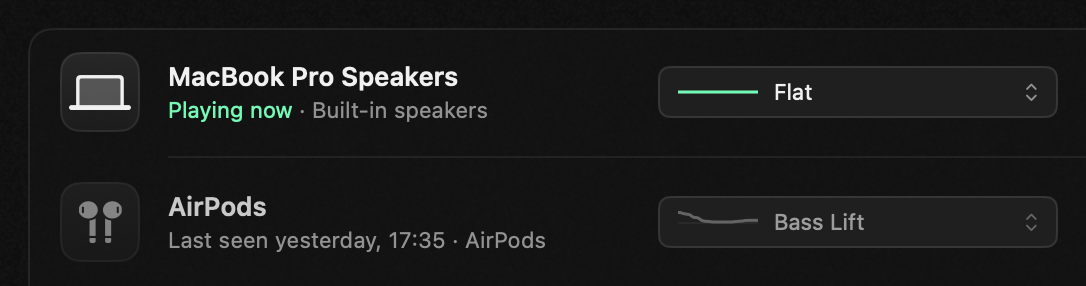
When your Mac switches outputs, SoundMarshal plays the preset you chose for the new one. An output that has no preset yet starts with the one you chose last.
To shape your own sound, drag the sliders under Bands, then click Save As… and name it. Save each one, or the next sound you shape may replace it.
After you quit SoundMarshal, your sound plays unchanged until you open the app again.
While an app uses the microphone of AirPods or other Bluetooth headphones, they play without the equalizer. It comes back when no app uses that microphone, usually when the call ends. To keep it during calls, choose another microphone in the calling app.
The equalizer works only on stereo outputs, so a surround sound setup plays without it.
