How to change the volume of one app on a Mac
Checked on 21 November 2026 with macOS 27.0.1 and SoundMarshal 1.0.
macOS can’t change the volume of one app by itself: its volume sets everything your Mac plays. To make one app quieter, use that app’s volume control or our free app, SoundMarshal. Neither can make an app louder than the Mac’s volume.
With the Mac’s own controls
Some apps, such as Music, have a volume slider. It can set that app quieter than the Mac’s volume, never louder.
In Safari, you can mute a tab but not turn it down: click the Audio button on the tab.
Alert sounds have a separate volume. Choose Apple menu > System Settings, click Sound, then drag the Alert volume slider.
If the app you want quieter has a slider, that is all you need. An app without one always plays at the Mac’s volume.
With SoundMarshal
SoundMarshal is free. It needs macOS 27 or later and a Mac with Apple Silicon.
- Download SoundMarshal, open the downloaded file and drag the app to Applications.
- Open the app, click Agree to accept its License Agreement, then click Continue. When macOS asks for permission, click Allow. macOS calls this recording: SoundMarshal changes your sound as it plays, and no sound leaves your Mac.
If you clicked Don’t Allow, click Open System Audio Settings in SoundMarshal’s window and turn SoundMarshal on.
- Click the horse in the menu bar to open the app’s window, then click Mixer at the top. If the horse is hidden, open the app from Applications again.
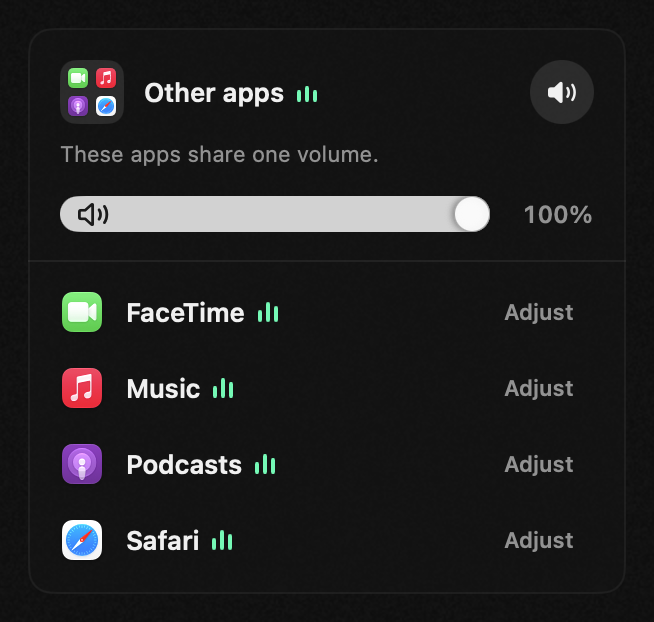
- Apps appear under Other apps once they use sound, and share one volume there. If the app you want isn’t listed, play something in it first. Click Adjust next to it: it moves into a tile, starting at the level it plays now. Up to 15 apps can have a tile.
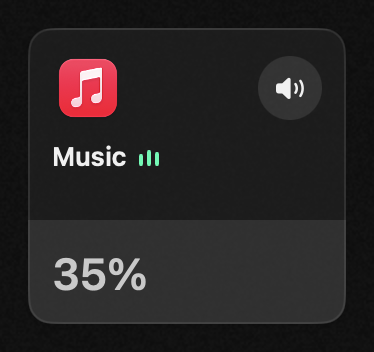
- Drag down on the app’s tile. The number shows its volume: 100% is as loud as the Mac’s volume. To mute the app, click its speaker button. To go back to 100%, double-click the tile.
SoundMarshal remembers each app’s volume. When you quit it, apps go back to the Mac’s volume until you open it again.
While an app uses the microphone of AirPods or other Bluetooth headphones, the Mixer steps aside. It comes back when no app uses that microphone, usually when the call ends. To keep your volumes during calls, choose another microphone in the calling app.
The Mixer works only on stereo outputs, so a surround sound setup plays without it.
